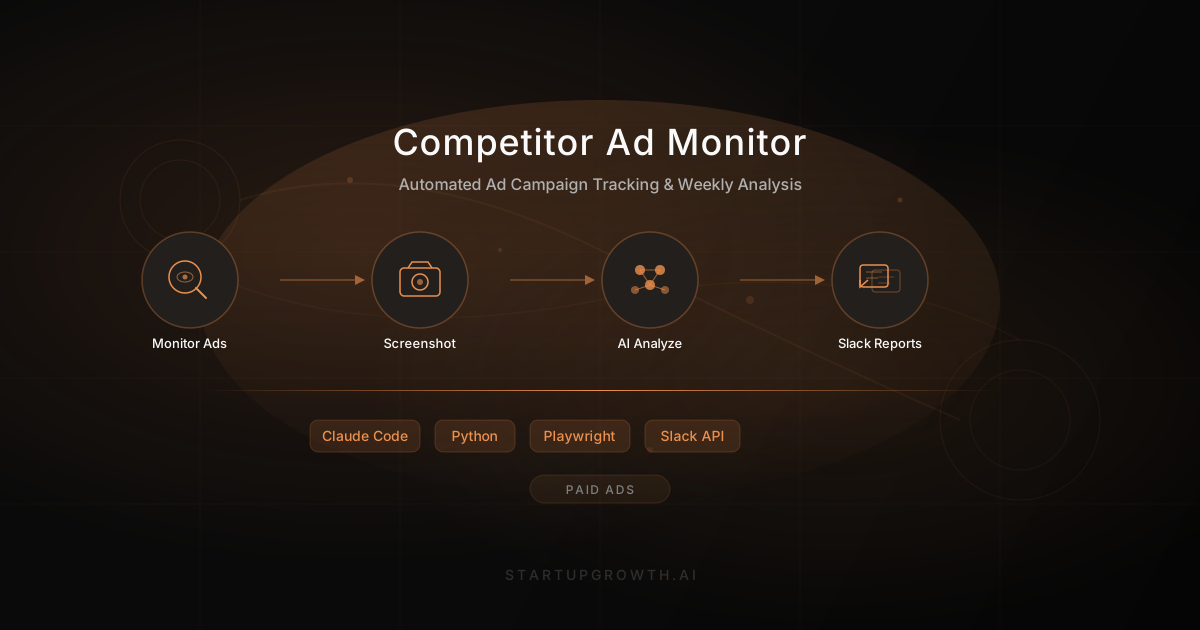
Track Your Competitors' Ad Campaigns
Build a fully automated system that monitors competitor ads across Google, LinkedIn, and Meta, and delivers weekly Slack reports with screenshots and analysis.


Workflow Description
Most marketing teams have no idea what their competitors are running in paid ads until someone stumbles across one in the wild. By then, you’ve already lost the positioning battle.
This workflow builds a fully automated system that monitors every competitor’s paid ads across Google Ads, LinkedIn Ads, and Meta (Facebook/Instagram) Ads — all three major B2B advertising platforms. Every Monday morning, your team gets a Slack report showing exactly which new ads each competitor launched that week, complete with screenshots, ad copy, and a full HTML report you can open in your browser.
The system scrapes public ad transparency libraries (no ad account access needed), deduplicates against a local database so you only see truly new creatives, uses OCR to extract text from Google’s pre-rendered ad images, and posts organized Slack threads — one per competitor — with everything your team needs to stay ahead.
Before You Begin
Tools You’ll Need Open
- Claude Code (Terminal / IDE) — builds the entire system for you
- Slack workspace with admin access — for creating a bot to receive reports
- A browser — for finding competitor ad library IDs
What You’ll Need Before Starting
- Python 3.11+ installed on your machine
- A Slack workspace where you can create a bot app and get a bot token
- Competitor list — the companies you want to monitor (you’ll look up their IDs on each ad library)
- Tesseract installed for OCR (
brew install tesseracton macOS) - (Optional) Meta API access token — only if you want Meta/Facebook/Instagram ad monitoring via the official API
How It Works
Prerequisites and Costs
- Python 3.11+ (free) - runtime for the monitoring system
- Playwright (free) - headless Chromium browser for scraping and screenshots
- Tesseract OCR (free) - extracts text from Google’s image-based ad previews (
brew install tesseract) - Slack Bot Token (free) - create a Slack app in your workspace for notifications
- Meta API Token (free, optional) - requires a Facebook Developer account for Meta ad monitoring
- SQLite (free) - built into Python, no server needed for deduplication
- macOS launchd (free) - built into macOS for weekly scheduling
- Total: $0/month — everything uses free, public ad transparency libraries
Build Instructions
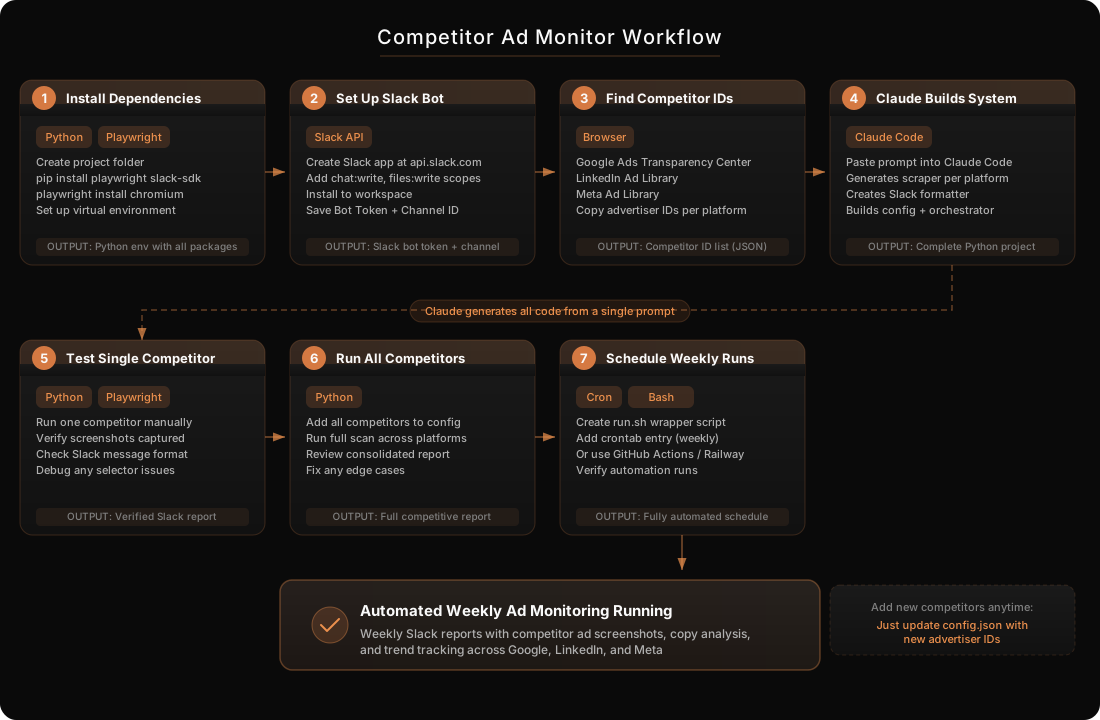
Step 1: Create Your Project and Install Dependencies
Why This Matters
The system needs Python with Playwright (headless browser), Tesseract (OCR), and several Python packages to function. Getting the environment right upfront prevents debugging later.
What To Do
1. Create the project directory and virtual environment:
mkdir competitor-ad-monitor && cd competitor-ad-monitor
python3 -m venv venv
source venv/bin/activate
2. Install Python dependencies:
pip install playwright pyyaml requests pytesseract Pillow
playwright install chromium
3. Install Tesseract for OCR (macOS):
brew install tesseractExpected Output
A clean Python virtual environment with all dependencies installed. Running playwright install chromium downloads the headless browser binary (~150MB).
Step 2: Set Up Your Slack Bot
Why This Matters
The system posts threaded messages with screenshots to Slack, which requires a bot token (not a webhook). The bot needs specific permissions to post messages, upload files, and create threads.
What To Do
1. Go to api.slack.com/apps and create a new app “From scratch”
2. Name it “Competitor Ad Monitor” and select your workspace
3. Go to OAuth & Permissions and add these Bot Token Scopes:
chat:write— Post messagesfiles:write— Upload screenshots and HTML reportsfiles:read— Required for the v2 file upload flow
4. Click Install to Workspace and authorize
5. Copy the Bot User OAuth Token (starts with xoxb-)
6. Create a Slack channel (e.g., #competitor-ads) and invite the bot to it
7. Get the channel ID by right-clicking the channel name, selecting “View channel details,” and copying the ID at the bottom
Expected Output
A bot token (xoxb-...) and channel ID (C0...) that you’ll add to the config file.
Step 3: Find Your Competitors' Ad Library IDs
Why This Matters
Each platform uses different identifiers for advertisers. Having the direct ID means faster, more reliable lookups vs. keyword search (which returns noise).
What To Do
For each competitor you want to monitor:
Google Ads Transparency Center:
- Go to
adstransparency.google.com - Search for the competitor name
- Click their advertiser profile
- Copy the
AR...ID from the URL:adstransparency.google.com/advertiser/AR06733320165238243329
LinkedIn Ad Library:
- Go to
linkedin.com/ad-library - Search for the competitor name
- Note: LinkedIn doesn’t expose stable advertiser IDs publicly — the system uses name-based search with intelligent filtering
Meta Ad Library (optional):
- Go to
facebook.com/ads/library - Search for the competitor
- Copy the
view_all_page_idparameter from the URL
Expected Output
A list of competitor names, domains, and platform-specific IDs. Example:
| Competitor | Domain | Google ID | Meta Page ID |
|---|---|---|---|
| Jasper | jasper.ai | AR06733320165238243329 | 1016628891789259 |
| Copy.ai | copy.ai | AR15854594112138248193 | 103518668159969 |
| 6sense | 6sense.com | AR00826140189201006593 | 1407858456141960 |
Step 4: Tell Claude Code to Build the System
Why This Matters
This is where the magic happens. Instead of writing hundreds of lines of scraping code, you give Claude Code a detailed prompt and it builds the entire system — monitors for each platform, screenshot capture with OCR, Slack notification threading, HTML report generation, database deduplication, and scheduling.
What To Do
1. Open Claude Code in your project directory and paste this prompt:
Build a competitor ad monitoring system that:

1. Scrapes Google Ads Transparency Center, LinkedIn Ad Library, and Meta Ad Library for competitor ads
2. Uses a SQLite database to track which ads we've already seen (dedup by platform + ad_id)
3. Captures screenshots of new ad creatives using Playwright
4. Uses Tesseract OCR to extract text from Google's pre-rendered ad images
5. Posts to Slack with:
   - One parent message per competitor showing counts across all platforms
   - A campaign summary with extracted headlines organized by platform
   - A full HTML report (self-contained, base64 screenshots) uploaded to the thread
   - Screenshots organized by platform with visual dividers
6. Uses the Slack v2 file upload flow (getUploadURLExternal, POST, completeUploadExternal)
7. Runs via config.yaml with competitor definitions including platform-specific IDs
8. Supports --dry-run and --competitor flags for testing

Here are my competitors: [paste your competitor list with IDs from Step 3]

Here's my Slack bot token: [paste token]
Channel ID: [paste channel ID]
2. Claude Code will create the full project structure:
competitor-ad-monitor/
-- main.py                    # Orchestration & CLI
-- config.yaml                # Competitors, API keys, Slack config
-- db.py                      # SQLite dedup layer
-- notifier.py                # Slack API (messages, screenshots, files)
-- screenshot.py              # Playwright screenshots + Tesseract OCR
-- report.py                  # Self-contained HTML report generator
-- run_weekly.sh              # Shell wrapper for scheduling
-- monitors/
   -- base.py                 # Abstract base class
   -- google_monitor.py       # Google Ads Transparency scraper
   -- linkedin_monitor.py     # LinkedIn Ad Library scraper
   -- meta_monitor.py         # Meta Ad Library API client
-- logs/
   -- weekly_run.log
-- ads.db                     # SQLite database (auto-created)
3. Let Claude Code iterate — it will handle edge cases automatically: Google’s internal API breaking and needing Playwright fallback, LinkedIn name search returning irrelevant results, Slack’s deprecated file upload API, and Google rendering all ad text as images that need OCR.
Expected Output
A complete, working system with 8+ Python files. Claude Code handles the interesting engineering challenges so you don’t have to.
Step 5: Test with a Single Competitor
Why This Matters
Running a dry run first lets you verify the scraping works without spamming your Slack channel. Then a single-competitor test confirms the full pipeline end-to-end.
What To Do
1. Run a dry run to verify scraping works:
python main.py --dry-run --verbose --competitor "Jasper"2. Check the output — you should see fetched ad counts per platform:
Checking google ads for Jasper...
Google Playwright: fetched 40 unique ads for Jasper
Checking linkedin ads for Jasper...
LinkedIn: fetched 47 ads for Jasper
[DRY RUN] Jasper: 40 new ads on google
[DRY RUN] Jasper: 47 new ads on linkedin
3. Run a full test (posts to Slack):
python main.py --verbose --competitor "Jasper"4. Check your #competitor-ads Slack channel — you should see a threaded report with screenshots.
Expected Output
A Slack message in your channel with a parent message showing ad counts, a campaign summary thread with extracted headlines, an HTML report file, and screenshots organized by platform with visual dividers.
Step 6: Run for All Competitors
Why This Matters
Once a single competitor works, running all competitors confirms the system handles multiple competitors in sequence, manages screenshot budgets across platforms, and stays within Slack rate limits.
What To Do
1. First do a dry run for all competitors:
python main.py --dry-run --verbose2. If everything looks good, run the full pipeline:
python main.py --verboseExpected Output
One Slack thread per competitor, each with platform-organized screenshots and an HTML report. In testing with 8 competitors, the system found 535 new ads across both platforms in ~3 minutes.
Step 7: Schedule Weekly Automatic Runs
Why This Matters
The whole point is hands-off monitoring. Setting up a weekly schedule means your team gets competitive intelligence delivered to Slack every Monday morning without anyone lifting a finger.
What To Do
1. Create the shell launcher script (run_weekly.sh):
#!/bin/bash
set -e
SCRIPT_DIR="$(cd "$(dirname "$0")" && pwd)"
cd "$SCRIPT_DIR"
source "$SCRIPT_DIR/venv/bin/activate"
python main.py >> "$SCRIPT_DIR/logs/weekly_run.log" 2>&1
echo "$(date '+%Y-%m-%d %H:%M:%S') -- Weekly run completed." >> "$SCRIPT_DIR/logs/weekly_run.log"
2. Make it executable:
chmod +x run_weekly.sh3. Create a macOS launchd plist at ~/Library/LaunchAgents/com.yourcompany.competitor-ad-monitor.plist:
<?xml version="1.0" encoding="UTF-8"?>
<!DOCTYPE plist PUBLIC "-//Apple//DTD PLIST 1.0//EN"
  "http://www.apple.com/DTDs/PropertyList-1.0.dtd">
<plist version="1.0">
<dict>
    <key>Label</key>
    <string>com.yourcompany.competitor-ad-monitor</string>
    <key>ProgramArguments</key>
    <array>
        <string>/path/to/competitor-ad-monitor/run_weekly.sh</string>
    </array>
    <key>StartCalendarInterval</key>
    <dict>
        <key>Weekday</key>
        <integer>1</integer>
        <key>Hour</key>
        <integer>8</integer>
        <key>Minute</key>
        <integer>0</integer>
    </dict>
    <key>StandardOutPath</key>
    <string>/path/to/competitor-ad-monitor/logs/launchd_stdout.log</string>
    <key>StandardErrorPath</key>
    <string>/path/to/competitor-ad-monitor/logs/launchd_stderr.log</string>
</dict>
</plist>
4. Load and verify:
launchctl load ~/Library/LaunchAgents/com.yourcompany.competitor-ad-monitor.plist
launchctl list | grep competitor
Note: StartCalendarInterval uses your machine’s local timezone. Adjust the Hour value if you need a different timezone (e.g., set Hour to 9 for Mountain time if you want 8 AM Pacific).
Expected Output
The agent is loaded and will fire every Monday at 8 AM. Logs go to logs/launchd_stdout.log and logs/launchd_stderr.log.
Quality Checklist
Verify Your Setup
Technical Setup
- Python virtual environment is activated and all dependencies installed
- Playwright chromium browser is downloaded (
playwright install chromium) - Tesseract OCR is installed and accessible (
tesseract --version) - Slack bot is installed to workspace with
chat:write,files:write,files:readscopes - Bot is invited to the target Slack channel
config.yamlhas valid bot token and channel ID- At least one competitor has a Google Ads advertiser ID configured
Data Quality
- Dry run returns non-zero ad counts for at least one platform per competitor
- Screenshots capture the actual ad creative (not empty pages or error screens)
- OCR extracts meaningful headlines from Google ad images (check
--verboseoutput) - LinkedIn advertiser filtering removes ads from unrelated companies
- Database deduplication works (running twice doesn’t report the same ads again)
Notification Quality
- Slack parent message shows correct counts per platform
- Campaign summary lists extracted headlines organized by platform
- HTML report opens in browser and shows all ads with embedded screenshots
- Screenshots are threaded under the correct parent message
- Platform dividers separate Google, LinkedIn, and Meta sections clearly
Common Mistakes to Avoid
Pitfalls That Will Trip You Up
Using a Slack webhook instead of a bot token. Webhooks can’t create threads, upload files, or reply to messages. You need a proper bot token (xoxb-...) with the right OAuth scopes. This is the #1 issue people hit.
Not inviting the bot to the channel. Creating the bot and getting the token isn’t enough — you must /invite @CompetitorAdMonitor to the channel or the API calls will silently fail with channel_not_found.
Forgetting to install the Playwright browser. pip install playwright installs the Python package, but you also need playwright install chromium to download the actual headless browser binary. Without it, every scraping call fails.
Running without Tesseract installed. The system degrades gracefully (campaign summaries will just be generic instead of showing specific headlines), but you lose a lot of value. OCR is how you see what messaging competitors are actually pushing.
Expecting the Google internal API to be stable. It isn’t. Google’s SearchCreatives RPC returns 400 errors regularly. That’s why the Playwright fallback exists. Don’t panic when you see 400s in the logs — the system handles it automatically.
Not accounting for timezone differences in scheduling. macOS launchd uses your machine’s local timezone. If your Mac is in Mountain time but you want the report at 8 AM Pacific, set the hour to 9.
Handling Special Situations
Edge Cases and Adaptations
If a Competitor Has No Google Ads
Set google_advertiser_id: null in their config entry. The system will skip Google for that competitor and only monitor the other platforms.
If LinkedIn Returns Ads from the Wrong Company
This happens because LinkedIn Ad Library only supports name-based search. The system has built-in advertiser filtering — it checks each ad card’s advertiser name against the target competitor and drops mismatches. If you’re seeing noise, check the --verbose logs for “filtered out” messages.
If Google’s Internal API Starts Returning Errors for All Competitors
This is normal — Google breaks the SearchCreatives RPC periodically. The Playwright fallback kicks in automatically. You’ll see log lines like “Google internal API returned 400… trying Playwright fallback.” No action needed.
If You Hit Slack Rate Limits
The system already has built-in delays between API calls (1.2 seconds between file uploads). If you’re monitoring 10+ competitors, you might need to increase these delays. Look for time.sleep() calls in main.py.
Volume-Based Scaling
| Competitors Monitored | Expected New Ads/Week | Run Time | Notes |
|---|---|---|---|
| 1-3 | 50-200 | ~1 min | Good for focused competitive analysis |
| 4-8 | 200-600 | ~3 min | Sweet spot for most teams |
| 9-15 | 500-1500 | ~5-8 min | May need to increase Slack rate limit delays |
| 15+ | 1000+ | 10+ min | Consider splitting into multiple runs |
Measuring Success
Tracking and Iterating on Results
Key Metrics to Track
| Metric | Healthy Range | Action If Below |
|---|---|---|
| Ads detected per competitor/week | 5-200 | Check if competitor is still advertising; verify IDs are correct |
| Screenshot success rate | >90% | Check if ad library page structure changed; update CSS selectors |
| OCR headline extraction rate | >70% (Google only) | Verify Tesseract is installed; check if Google changed image format |
| Slack delivery success rate | 100% | Check bot token, channel ID, and bot channel membership |
| Dedup accuracy | 0 duplicate notifications | Check database integrity; verify UNIQUE(platform, ad_id) constraint |
Timeline Expectations
| Timeframe | What to Expect |
|---|---|
| Day 1 | System built and first successful run for 1 competitor |
| Week 1 | All competitors configured, full pipeline running, first automated Monday report |
| Week 2-4 | Team starts using reports for competitive positioning discussions |
| Month 2+ | Historical data enables week-over-week trend analysis |
Signs Your System Is Working
- Your marketing team references competitor ads in strategy meetings
- You spot competitor messaging shifts within a week of launch (not months)
- The Monday Slack report becomes a regular check-in for the team
- You can quickly answer “what are [competitor] running right now?” with data
Signs You Need to Iterate
- A platform consistently returns 0 ads (selector/API breakage)
- The same ads keep showing up as “new” (dedup issue)
- Screenshots show blank pages or error screens (page load timing)
- Campaign summaries show garbled OCR text (Tesseract configuration)
The Prompts
Prompt 1: Initial System Build
Use this prompt with Claude Code to build the entire monitoring system from scratch:
Build a competitor ad monitoring system that scrapes Google Ads
Transparency Center, LinkedIn Ad Library, and Meta Ad Library.

Requirements:
- SQLite database for dedup (UNIQUE on platform + ad_id)
- Playwright headless browser for Google and LinkedIn scraping
- Meta uses the official Graph API (/ads_archive endpoint)
- Google has a dual-path: try internal SearchCreatives RPC first,
  fall back to Playwright scraping when it returns 400
- LinkedIn uses name-based search with post-fetch advertiser
  name filtering to remove unrelated results
- Tesseract OCR to extract text from Google's pre-rendered
  ad images (simgad CDN images)
- Slack notifications using bot token with:
  - One parent message per competitor (combined platform counts)
  - Campaign summary with extracted headlines per platform
  - Self-contained HTML report uploaded to thread
  - Screenshots organized by platform with dividers
- Slack v2 file upload flow (getUploadURLExternal, POST, completeUploadExternal)
- config.yaml for competitor definitions and API keys
- CLI with --dry-run, --competitor, and --verbose flags
- Weekly scheduling via macOS launchd

Competitors: [your list here]
Slack bot token: [your token]
Channel ID: [your channel ID]
Prompt 2: Adding a New Competitor
Add [Company Name] to the competitor ad monitor.

Their details:
- Domain: [domain.com]
- Google Ads Transparency ID: [AR... from the URL]
- LinkedIn: use name-based search
- Meta page ID: [from facebook.com/ads/library URL, or null]

Add them to config.yaml and run a dry-run test to verify.
Prompt 3: Debugging When a Platform Breaks
The [Google/LinkedIn/Meta] monitor is returning 0 ads for all
competitors. Can you investigate? Check the logs, try a manual
scrape with --verbose, and fix whatever changed.
Expected Results
- One-time setup: 2-3 hours (including Slack bot creation, competitor ID lookup, and first test run)
- Per-week effort after setup: 0 minutes — fully automated
- Weekly output: One Slack thread per competitor with ad screenshots, campaign summary, and downloadable HTML report
- Typical ad volume: 50-200 new ads per competitor per week across platforms
- Run time: ~3 minutes for 8 competitors across 2-3 platforms
- Monthly cost: $0 — all data comes from public ad transparency libraries
- Data ownership: Full — SQLite database with complete history, raw API responses, and timestamps for trend analysis
- Scalability: Add a new competitor in 2 minutes by adding a YAML block to config
- Platforms covered: Google Search/Display ads, LinkedIn Sponsored Content, Meta (Facebook/Instagram) ads
Build This With AI Assistance
Download the Markdown file below and upload it to your preferred AI tool to have it walk you through the build.
✨ Let AI Build This For You
Download the implementation guide and let an agent build this for you.
You can follow the manual steps below, but it would be a lot easier to